
Client-Side Encryption for Your Seedbox or Storage Box
This guide shows you how to encrypt your data on your own computer, before it is uploaded to a Pulsed Media seedbox or storage box. Done this way, Pulsed Media (and anyone who could ever access the storage) sees only encrypted blobs. The contents, the keys, and the ability to read them never leave your machine.
This is end-to-end, zero-knowledge encryption for your stored data: you hold the keys, Pulsed Media holds only ciphertext, and no one in between can read the contents. Your data already sits on hardware Pulsed Media owns outright, in Finnish datacenters, with no content scanning; client-side encryption adds the final layer, so the contents are readable only by you, not even by us.
What client-side encryption protects
Be precise about what this buys you. Client-side encryption is a strong tool, but it is not magic, and overselling it would be dishonest.
| ✓ What it protects | ✗ What it does NOT do |
|---|---|
|
|
| ⚠ If you lose the passphrase or key, your data is gone. Permanently. Pulsed Media cannot recover it — that is the entire point of client-side encryption. Store your passphrase in a password manager and keep an offline backup of any key files. There is no reset link. |
What "zero-knowledge" actually means
Zero-knowledge is a claim about capability, not policy. A provider that says "we do not look at your files" is making a promise you have to trust. A provider that cannot look, because it never holds the keys, is offering something stronger: a guarantee enforced by mathematics rather than by good intentions.
Client-side encryption is what turns the promise into the guarantee. The key is generated on your computer and never transmitted. Pulsed Media receives ciphertext and stores ciphertext. There is no key on our side to compel, subpoena, leak, or misuse, because there is no key on our side at all. That is the difference between "trust us" and "you do not have to."
You can confirm it yourself. Pulsed Media never asks for your passphrase or key file, and no PM tool or panel can display your encrypted file contents. If any service can show you your own "encrypted" files without you supplying a key, that service holds the key, and the encryption is not zero-knowledge.
Finnish jurisdiction (full GDPR, no US CLOUD Act reach) is a real second layer, and it matters for metadata and for the fact that you are a customer at all. But jurisdiction protects you only as far as law is enforced. Encryption protects you regardless. Use both; rely on the encryption.
End-to-end encryption for backups and transfers
"End-to-end" is most precise in messaging, where only the two people talking can read a message. Applied to storage it means the same shape: the data is encrypted at one end (your computer), travels and rests encrypted, and is readable only at the other end (you, holding the keys). Nothing in the middle, including the storage provider, can open it.
Two segments make up the path, and both are covered:
- In transit — SFTP, SCP, rsync over SSH, and HTTPS are encrypted by the protocol. Data moving to or from your box is never in the clear on the wire.
- At rest — this is the segment client-side encryption adds. Without it, your files sit as plaintext on the storage, readable by anyone who reaches it. With it, they sit as ciphertext that only you can open.
Key custody is the whole distinction. If you hold the only keys, it is end-to-end. If the provider keeps a copy "for convenience," it is not, whatever the marketing says.
If you back up with BorgBackup or Restic, you already have this: both encrypt on the client before anything leaves your machine — Restic always, and Borg whenever you initialise the repository with encryption (for example borg init --encryption=repokey). An encrypted Borg or Restic repository on a Pulsed Media box is end-to-end encrypted. The methods below give you the same property for files you are not routing through a backup tool.
Which method should you use?
All three give you the same guarantee (Pulsed Media sees only ciphertext). They differ in convenience.
| Method | What it is | Hides filenames? | Best for |
|---|---|---|---|
| gpg | Encrypt a folder into one file, upload it | N/A (single blob) | One-off archives and backups; maximum auditability |
| rclone crypt | An automatically-encrypted folder that syncs to the box | Yes | Keeping a directory mirrored to the box, set-and-forget |
| Cryptomator / gocryptfs | A mountable vault you drag files into | Yes | A "normal folder" experience, GUI or CLI |
Prerequisites
- A Pulsed Media seedbox or storage box, and your SSH/SFTP login details (see Seedbox as Private Cloud Storage via SFTP).
- The tooling for your chosen method, installed on your own computer (not on the server — see the warning under Method 2):
- gpg — pre-installed on most Linux. macOS: GPG Suite or
brew install gnupg. Windows: Gpg4win. - rclone — download from rclone.org/downloads (single static binary, all platforms).
- Cryptomator or gocryptfs — see Method 3.
- gpg — pre-installed on most Linux. macOS: GPG Suite or
Method 1: gpg
The simplest, most transparent option: pack a directory into a tarball and encrypt it with a passphrase. Nothing to configure, no remote state, and gpg has been audited by security researchers for decades. Best for archives and backups you encrypt once and upload.
Encrypt a directory into a single encrypted file:
tar czf - mydir | gpg --symmetric --cipher-algo AES256 -o backup.tar.gz.gpg
gpg prompts you for a passphrase. The result, backup.tar.gz.gpg, is AES-256 encrypted. Verified on GnuPG 2.4.7:
$ file backup.tar.gz.gpg
backup.tar.gz.gpg: PGP symmetric key encrypted data - AES with 256-bit key salted & iterated - SHA512
Upload the encrypted file with any protocol your box supports, such as SFTP, rsync, rclone, or scp:
sftp user@yourbox.pulsedmedia.com
# then: put backup.tar.gz.gpg
Decrypt after downloading it back:
gpg -d backup.tar.gz.gpg | tar xzf -
For scripted or unattended use, read the passphrase from a file instead of typing it:
tar czf - mydir | gpg --batch --passphrase-file ~/.secret-pass --symmetric --cipher-algo AES256 -o backup.tar.gz.gpg
(This is the clean, correct form of the "zero-knowledge" one-liner that comes up in seedbox communities, for example the LowEndTalk discussion #218220. The principle is the same: encrypt locally, upload the ciphertext.)
Backing up a live or changing directory? tar may skip or truncate files that change while it reads them. For one-off archives of data that isn't being written, this is fine. For anything live (an active download directory, a running app's data), either stop writing to the source first, or use a real backup tool (BorgBackup or Restic) that handles this correctly. Either way, verify the archive after you create it:
gpg -d backup.tar.gz.gpg | tar tzf - >/dev/null && echo "archive OK"
A backup you've never verified is not a backup.
Method 2: rclone crypt
To keep a directory synced to your box and encrypted automatically — both filenames and contents — use rclone's crypt remote. It wraps an ordinary SFTP remote: rclone encrypts on your machine, then writes the encrypted blobs to the box.
| Warning — run rclone on your own computer, not on the seedbox. If you run it on the server, the encryption happens server-side and the whole point is lost. Client-side means your side. |
Configure two remotes. First an SFTP remote pointing at your box, then a crypt remote that wraps it:
rclone config
# 1. Create an SFTP remote (name it e.g. "box") to user@yourbox.pulsedmedia.com
# 2. Create a "crypt" remote (name it e.g. "secret"):
#      - remote = box:encrypted
#      - filename encryption = standard
#      - directory name encryption = true
#      - set a password (and a second "salt" password, recommended)
Then sync. rclone encrypts each file before it leaves your machine:
rclone sync ~/Documents secret:
Warning — rclone sync mirrors. It deletes anything on the box that is not in your local folder. Point it the wrong way, or run it after emptying the local folder, and it wipes the remote copy. Run it once with --dry-run first, and use rclone copy if you only ever want to add files, never remove them.
|
What lands on the box is unreadable: both the names and the contents. Verified with rclone v1.74.3 (filenames encrypted to opaque tokens, contents with no recoverable plaintext):
# On the box, the stored blob looks like:
hm23tmliptjg0tbdkh65e1pj5hf230d1m6sem32049h5vp08qc1g   (encrypted filename)
# Reading it back THROUGH the crypt remote decrypts transparently:
$ rclone cat secret:holiday-photos.txt
TOP SECRET customer data
| Note — keep a backup of your rclone config passwords. The crypt password (and the optional salt) ARE your key. Lose them and the synced data is unrecoverable, exactly as with gpg. |
Method 3: Cryptomator or gocryptfs
For a drag-and-drop experience, a mountable vault encrypts files transparently as you move them in. You work with a normal-looking folder; what syncs to the box is encrypted.
Cryptomator is a cross-platform GUI (Windows, macOS, Linux). You create a vault, set a passphrase, unlock it, and a virtual drive appears; drop files in and Cryptomator encrypts them. Point your sync tool (rclone or an SFTP mount) at the vault's encrypted folder to push it to the box. The wizard, end to end:
- Creating and unlocking a Cryptomator vault
-
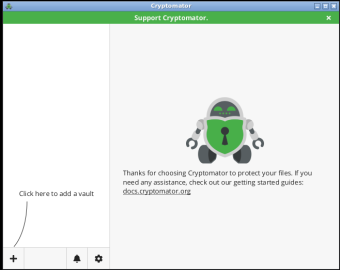 1. The Cryptomator main window. The vault list starts empty; the plus control adds a vault.
 -
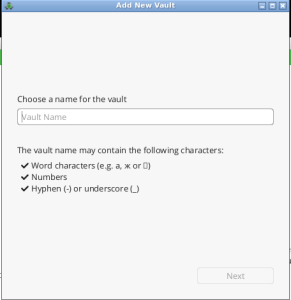 2. The Add New Vault wizard: name the vault, then choose where its encrypted folder lives.
 -
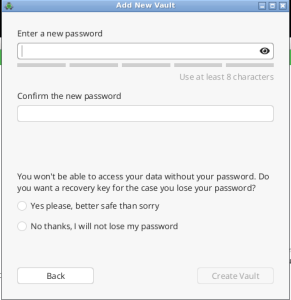 3. Set the vault passphrase. This is the only key — if you lose it, the data is gone.
 -
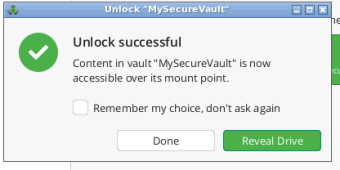 4. Unlocked: the vault is accessible over its mount point. Drop files in; they are encrypted before they sync to the box.


gocryptfs is the Linux/macOS command-line equivalent, FUSE-mounted:
gocryptfs -init ~/vault-encrypted          # create the vault (set a passphrase)
gocryptfs ~/vault-encrypted ~/vault-plain  # mount it
# work in ~/vault-plain; ~/vault-encrypted holds the ciphertext to sync to the box

The same rule applies: the vault passphrase is your only key. There is no recovery.
What about BorgBackup and Restic?
If your goal is encrypted backups specifically — with deduplication and incremental snapshots — BorgBackup and Restic do client-side encryption natively and are already installed on Pulsed Media boxes. Those are covered in Storage Boxes and the Proxmox backup tutorial rather than repeated here. Use this page for general file encryption; use Borg or Restic when you want a proper backup tool.
Troubleshooting
- "I forgot my passphrase"
- There is no recovery. This is by design: if a passphrase could be reset, the encryption would not be zero-knowledge. Always store passphrases in a password manager.
- gpg decryption fails with "no valid OpenPGP data found"
- The file was likely corrupted in transfer, or transferred in ASCII/text mode. Re-upload in binary mode (SFTP and rsync are binary by default).
- rclone crypt
- "filename too long" errors : Very long original filenames can exceed limits once encrypted. Use
filename_encryption = standard(the default) and avoid extremely deep paths, or setfilename_encryption = offif you only need content encryption. - Files appear but I can't read them on the box
- That is correct: they are encrypted. You read them by going through your gpg, rclone, or vault tooling on your own machine, never by opening them directly on the server.